
First time logging in
When a user account has been created for you, you will not receive a login invite, neither will a password be created for you.
To create a password for your new user account:
Navigate to your District Engage website. This is the same site that the public sees.
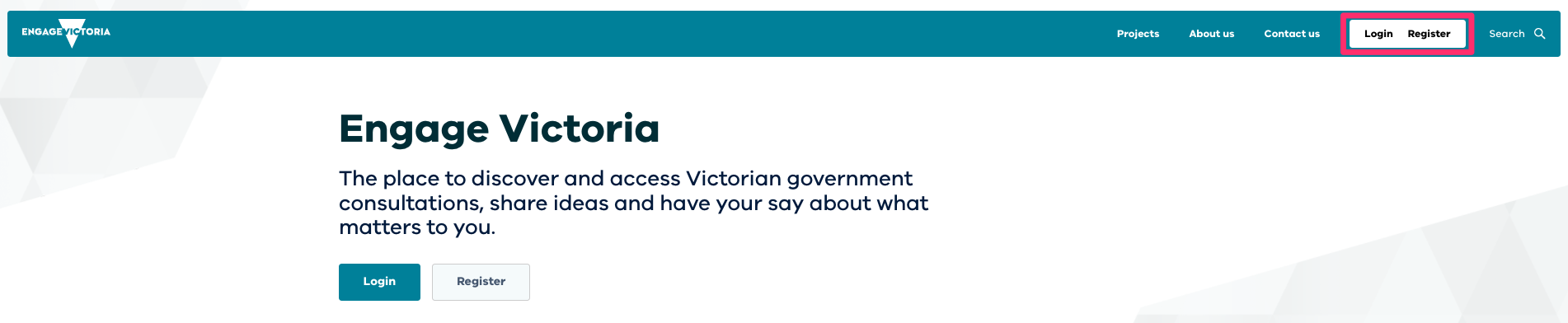
In the top right, click Login.
Click Forgot password. A pop up window will appear.
Fill in the email address the new account was created for. Click Email reset password link. You will receive an email to create your password.
Once the new password has been created, you will be able to access your account through the Login button on the District Engage website.
When first logging in to District Engage, you will be required to setup Two Factor Authentication (2FA).
To log in to District Engage for the first time and set up 2FA:
Navigate to your District Engage website. This is the same site that the public sees.
In the top right, click Login.
Enter your username and password.
You will now be redirected to the 2FA section of your profile settings, where you will be able to enable 2FA.
After clicking on “Enable“ in the 2FA section, you will be invited to enter and confirm your password.
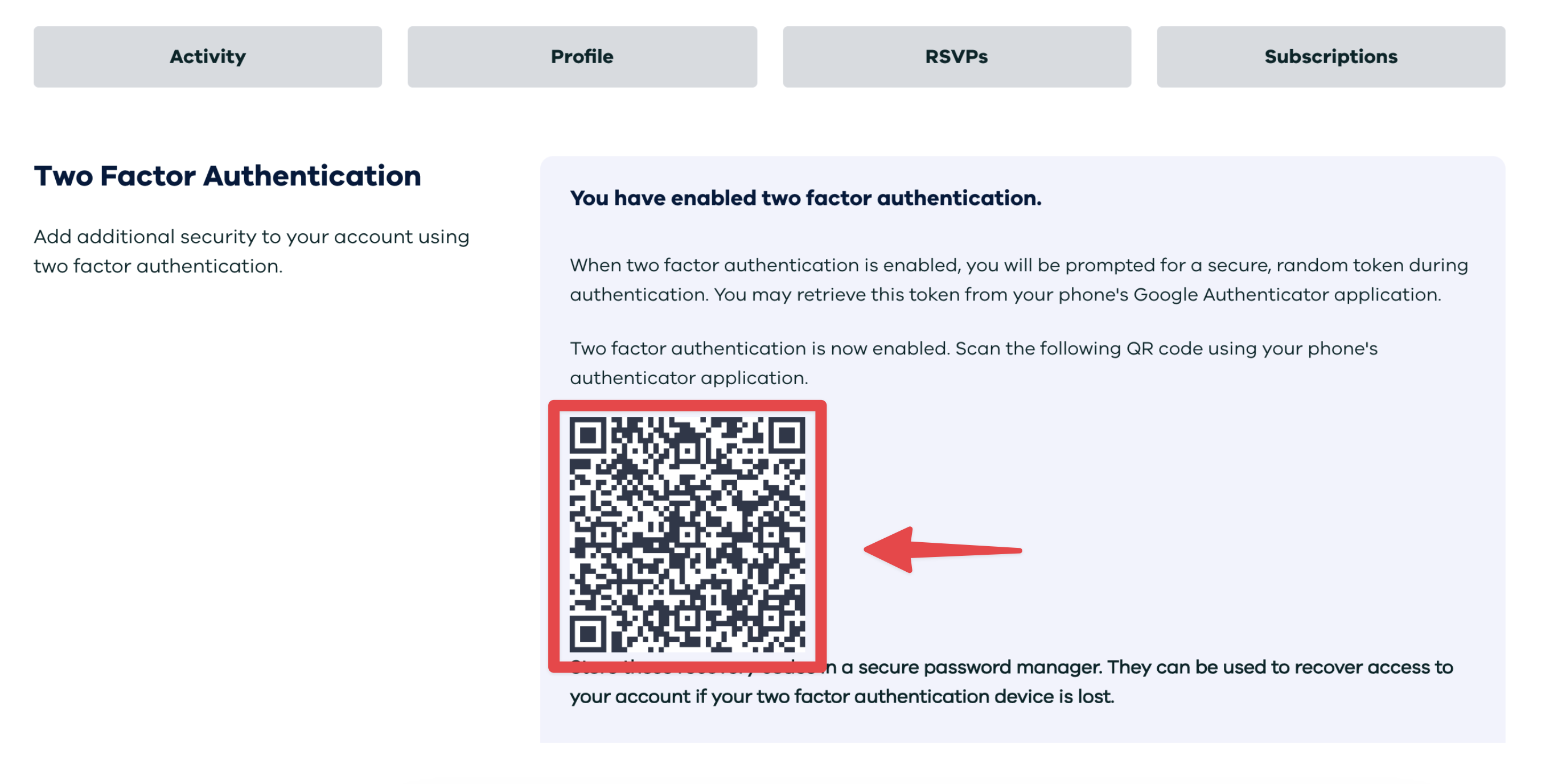
Once you have confirmed your password, 2FA will be enabled and you should see a QR code under the 2FA section of your profile settings.
Follow these steps to properly scan the QR code using the Microsoft Authenticator app:
Note
If you are not using the Microsoft Authenticator app, follow a similar flow in whatever authenticator app you're using.
Open your Microsoft Authenticator app on your mobile phone.
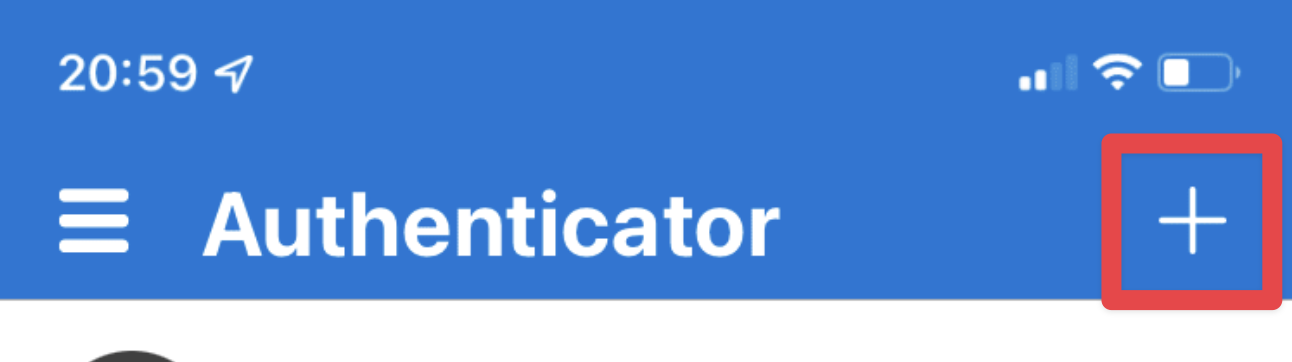
Click the + button on the top right of the screen
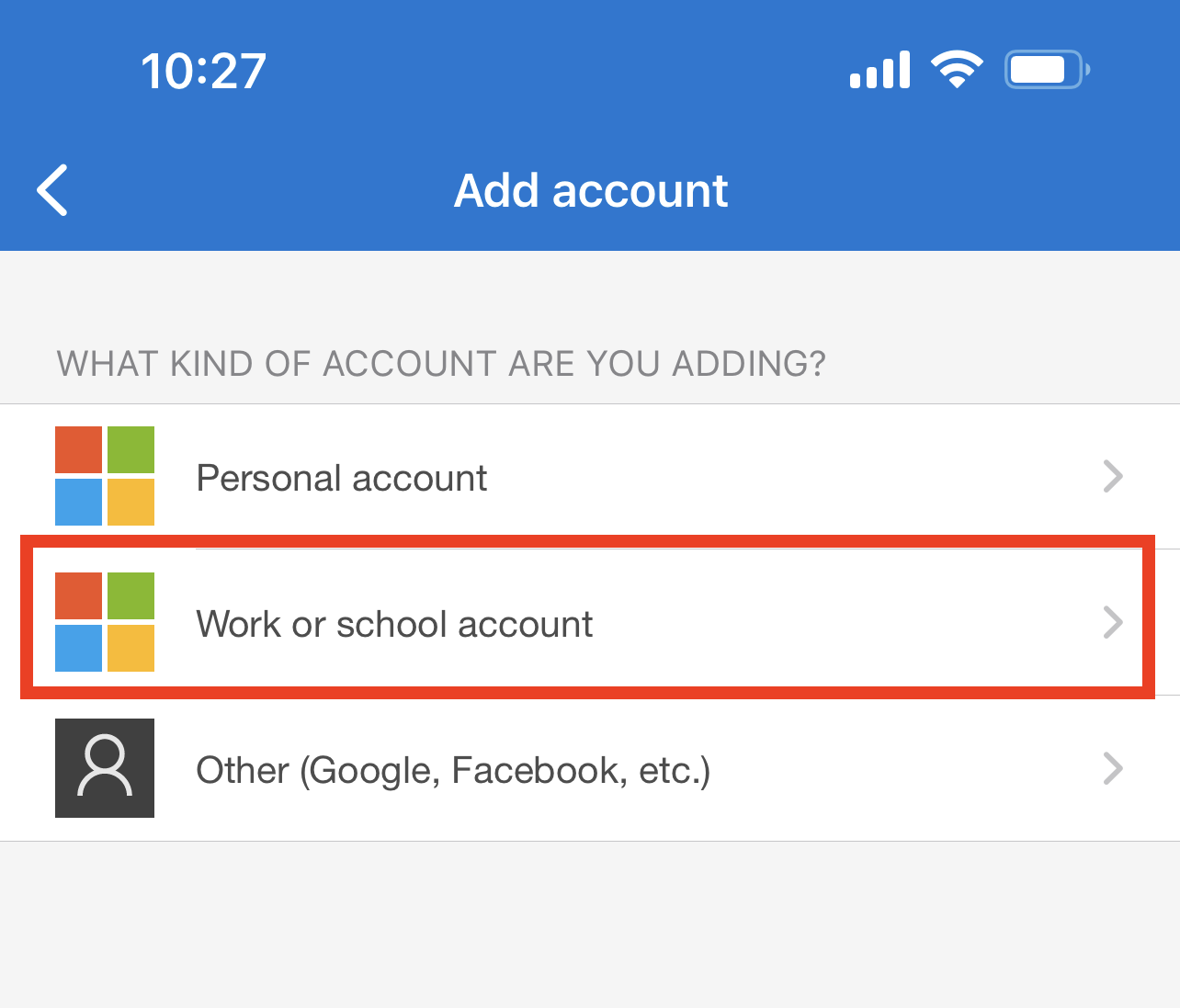
Select “Work or school account“
Select “Scan QR Code“ to activate your camera.
Point your camera at the QR code displayed on your District Engage screen to scan it
Engage Victoria will now be added to your Microsoft Authenticator app account list.
Important: Make sure to scan the QR code using your authenticator app, not your phone's regular camera app. Using the camera app may save the code to your device's passcode app instead of your authenticator app.
7. Scan this QR code via the authenticator app on your mobile device (as per instructions above).
8. This will add a new account “Engage Victoria“ under your authenticator account list.
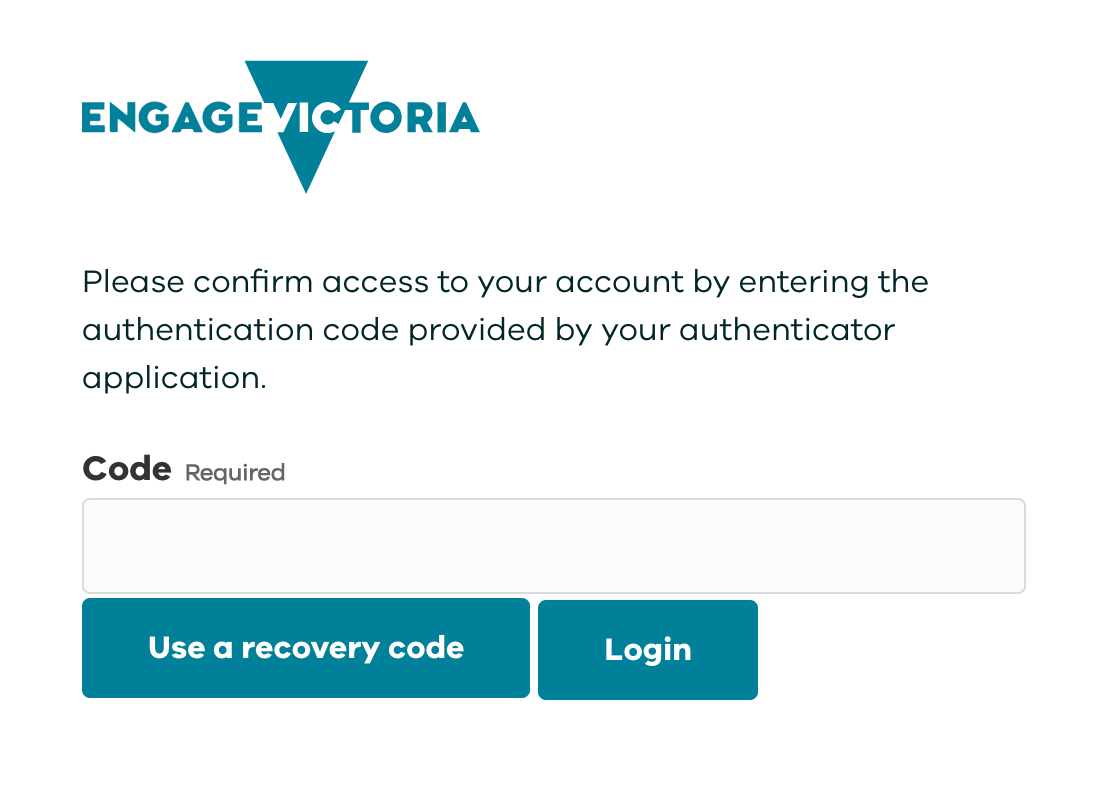
9. The next time you will login to District Engage, you will be redirected to an authentication page and invited to enter an authentication code provided by the authenticator app. Once the code is entered, just click Login.
Logging in to District Engage
Once you had setup the 2FA after logging in the first time, follow the following steps to log in to District Engage:
Navigate to your District Engage website. This is the same site that the public sees.
In the top right, click Login.
Enter your username and password.
You will be redirected to a page asking for the 2FA code. Log into your authenticator app, look for the code and enter the code on the page. Click Login.
You are now logged in to District Engage.
In the top right, click on your username, and then Dashboard, to be taken to the configuration interface where you can start building your projects.
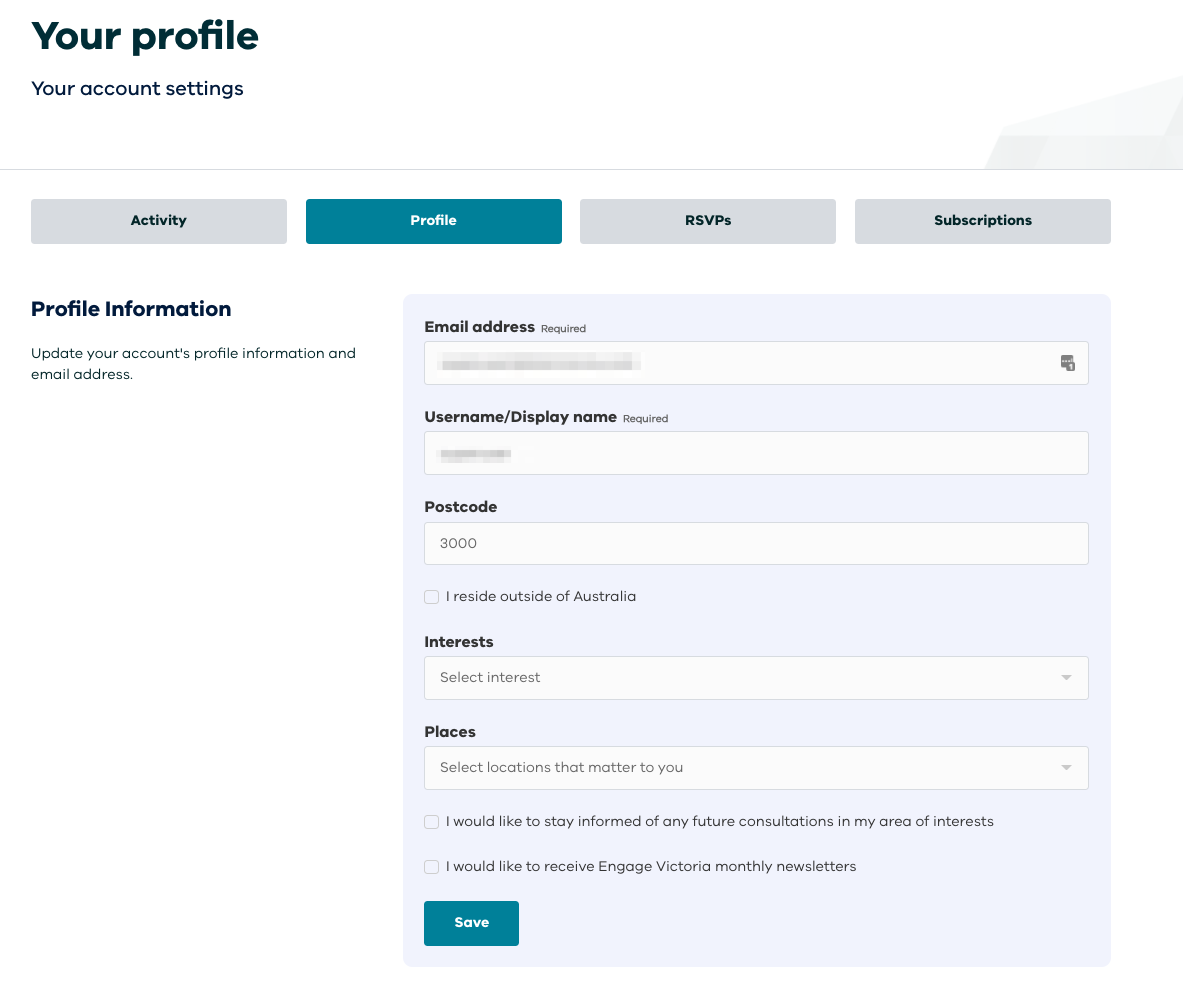
Your profile
To find your profile:
Log in to your District Engage website.
At the top right of the page, click your username, then click Profile.
Edit your profile information, then click Save.
For more information on your user profile.